![neurotone-primary-logo-CMYK-1.jpg]](https://support.neurotone.com/hs-fs/hubfs/neurotone-primary-logo-CMYK-1.jpg?height=40&name=neurotone-primary-logo-CMYK-1.jpg)
Applies to: Provider certification and practice certification.
Before you start
Claim your badge first. You cannot share a badge you have not accepted. See How to accept your certification badge.
Get your embed code
Both provider badges and practice badges work the same way here. Sign in to Credly, open the badge you want to display, and copy its embed code. Paste that code into your website where you want the badge to appear.
For step by step help with Credly’s own tools, see Credly’s help documentation.
Provider certification
Two actions live in the Pro Portal, on your certification page:
- Select Add to LinkedIn to add your certification to your LinkedIn profile.
- Select Get certificate to download a printable certificate.
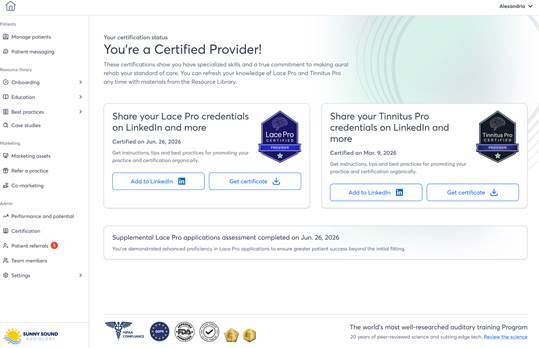
Add to LinkedIn and Get certificate sit on each certification card.
You have a separate badge and a separate embed code for each certification you hold. The code for your Lace Pro certification shows your Lace Pro badge, and the code for your Tinnitus Pro certification shows your Tinnitus Pro badge.
Your provider badge does not change over time, so you paste it once and it stays accurate.
Practice certification
Copy your practice’s embed code once. When your practice reaches a new level, Neurotone upgrades the badge for you. The badge on your website changes to the new level on its own. You do not need to copy a new code or edit your site.
Why your practice shows only its highest level
Your practice displays one badge, and it is always the highest level you have reached. Your earlier badges are not removed or cancelled. They stay in your account as a record of what your practice has earned. Showing one badge keeps the message clear for patients.
Where your certification already appears
You do not have to do anything for these. They update on their own.
- Your clinic map listing. Your listing shows your practice’s certification level.
- The patient app. Certified providers show a certification label under their name and a badge on their profile photo. Your practice’s certification appears below your clinic details.
Using your badge
Display your badge as it was issued. Do not recolor it, crop it, stretch it, or add text to it, and do not use it to suggest a certification your practice has not earned.
If you have a question about using your badge in a campaign or on printed material, contact your account manager.
Troubleshooting
Your embedded badge shows the wrong level.
Your website may be showing a cached version of the page. Refresh the page, and clear your site’s cache if it uses one. If it still shows the old level a day after your level changed, contact your account manager.
The badge does not appear on your website.
Confirm you pasted the full embed code, and that your badge privacy setting is public. A private badge will not display. See How to accept your certification badge.
Your map listing has not updated.
Map listings update after your practice’s status is recalculated. If your listing still shows an old level after your next sign-in, contact your account manager.
Your badge does not appear on LinkedIn.
Use Add to LinkedIn from your certification page rather than adding it by hand, which makes sure the certification links back to your verifiable badge.