![neurotone-primary-logo-CMYK-1.jpg]](https://support.neurotone.com/hs-fs/hubfs/neurotone-primary-logo-CMYK-1.jpg?height=40&name=neurotone-primary-logo-CMYK-1.jpg)
Applies to: Practice certification. The invitations you send enroll people in provider certification, which is what your practice’s level is calculated from.
Before you start
You need to be the owner or an admin of your practice, and your practice needs to have applied. The team table appears after someone selects Apply for certification. See How to get certified.
The table stays available at every level, so you can keep using it after your practice is certified.
Open your team table
- Select Certification under Admin in the left navigation.
- Scroll to Team member Lace Pro certification status.
The heading above the table tells you how many more certifications your practice needs to reach its next level.
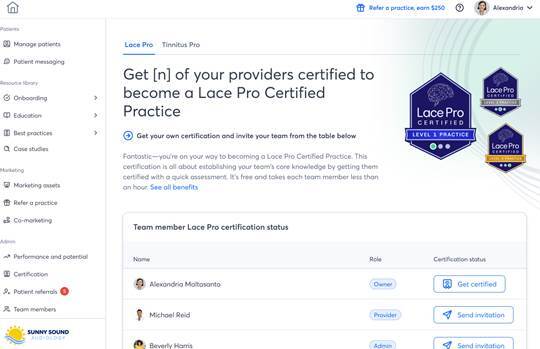
Your team table, with the Lace Pro and Tinnitus Pro tabs at the top of the page.
Switch between Lace Pro and Tinnitus Pro
The table shows one certification at a time. Select the Lace Pro or Tinnitus Pro tab at the top of the page to switch.
Each tab tracks its own certification, and your practice earns each one separately. Someone certified in Lace Pro is not certified in Tinnitus Pro.
Send an invitation
- Find the person’s row in the table.
- Select Send invitation in the Certification status column.
The person receives an invitation to take the assessment. An invitation is a prompt, not a requirement. Anyone at your practice can certify without one, from their own profile menu.
To take the assessment yourself, select Get certified in your own row.
Read the table
Each row shows three things:
- Name. The team member.
- Role. Owner, Provider, or Admin.
- Certification status. Where that person stands, and the action you can take.
A member who has not started shows Send invitation. Once you invite them, their row shows that they have been invited. Once they pass, their row shows that they are certified.
You can see whether someone has certified. You cannot see their score, how many attempts they made, or their answers.
Read average licenses per member
Once your practice’s licenses are being tracked, the table also shows the average licenses per month for each member and a practice-wide average. Use the practice average to check your progress toward Lace Pro Level 2 and Level 3.
The average counts every provider who can prescribe Lace Pro licenses, whether or not they are certified.
How completions roll up
Your practice’s Lace Pro Level 1 and Tinnitus Pro status is a percentage of the people in your practice who hold that provider certification. That count includes everyone in your practice, including team members who cannot prescribe Lace Pro.
Each time someone passes, your percentage goes up. When it crosses the threshold, your practice reaches the level on its next calculation. See How to get certified for the numbers.
Troubleshooting
A member says they never got the invitation.
Ask them to check their spam folder. You can select Send invitation again to resend it. They can also certify without the invitation by selecting their name in the top right, then Get certified.
A member passed but the table still shows them as invited.
The table updates on their next sign-in after their result is recorded. Check again shortly.
Someone appears in the table who should not.
The table lists everyone in your practice. Remove the person under Team members in the left navigation, and they will no longer appear or count toward your percentage.
Your percentage did not move after someone certified.
Check that you are on the right tab. A Tinnitus Pro certification does not count toward your Lace Pro percentage. If the tab is right, the change appears on your next sign-in after the next calculation.