![neurotone-primary-logo-CMYK-1.jpg]](https://support.neurotone.com/hs-fs/hubfs/neurotone-primary-logo-CMYK-1.jpg?height=40&name=neurotone-primary-logo-CMYK-1.jpg)
Neurotone AI’s Clinic Locator works around the clock to connect high-intent patients in your local area directly to your expertise. The Patient Referrals dashboard is your central hub for tracking, managing, and converting these incoming leads into active patients.
This guide covers how the referral pipeline works and how to use your dashboard to maximize patient acquisition.
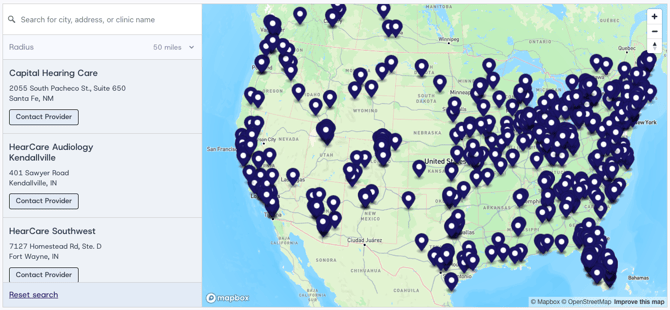
How the Referral Process Works
- Discovery: Patients searching for audiology care or auditory training find your practice via the Neurotone Clinic Locator (neurotone.com/clinic-locator).
- Contact: The patient fills out a secure contact form to request more information or an appointment.
- Instant Notification: Your clinic immediately receives an email alert with the patient’s contact details.
- Dashboard Sync: The patient is automatically added to your Patient Referrals dashboard in the Pro Portal, ensuring no lead ever falls through the cracks.
Navigating Your Referrals Dashboard
You can access your pipeline at any time by clicking Patient referrals in the left-hand navigation menu.
Tip: Keep an eye on the red notification badge next to "Patient referrals" in the menu. This number indicates how many unread or new referrals are waiting for your attention.
![]() Referral Insights
Referral Insights
At the top of the dashboard, you will see a high-level view of your referrals:
- Geographic Map: A visual representation of where your referrals are coming from, helping you understand your practice's reach.
- Active Since: The date your clinic became active on the Clinic Locator.
- Total Referrals Sent: The total number of leads generated for your clinic to date.
- Projected Referrals: An estimated forecast of the leads your clinic is on track to receive by the end of the year.
Managing Your Patient List
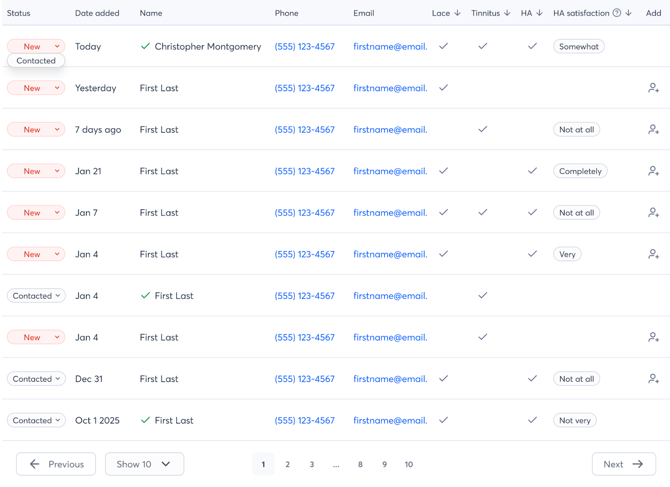
The referral table provides a complete log of every patient who has reached out. From here, your front office staff can manage the intake workflow.
- Tracking Status: Use the Status dropdown on the left side of the table to keep your team aligned. Update a lead from New to Contacted once your front desk has reached out to schedule their initial consultation.
- Reviewing Patient Needs: Quickly scan the columns to see what the patient is interested in or currently using, including indicators for Lace, Tinnitus, Hearing Aids (HA), and HA Satisfaction.
- Quick Contact: Phone numbers and email addresses are hyperlinked for rapid follow-up.
Converting a Referral to an Active Patient
Once you have consulted with a referral and they are ready to begin their auditory training or tinnitus therapy, you can seamlessly convert them into an active user.
- Locate the patient in your Referrals table.
- Click the Add user icon (a person with a plus sign) in the far-right Add column.

- This will launch the patient creation flow, automatically porting over their contact information so you can quickly assign them a Lace or Tinnitus Pro license.