![neurotone-primary-logo-CMYK-1.jpg]](https://support.neurotone.com/hs-fs/hubfs/neurotone-primary-logo-CMYK-1.jpg?height=40&name=neurotone-primary-logo-CMYK-1.jpg)
Connect CounselEAR once and Lace Pro licenses your patients for you. When a hearing aid is added or a chosen appointment is completed, the patient gets their Lace Pro license and a welcome text and email. Setup takes about 20 minutes in Settings › Integrations, plus two short webhooks in CounselEAR.
Why connect CounselEAR
- Save time. No duplicate data entry and no manual license assignment.
- No patient missed. Every qualifying fitting gets a license, even on your busiest day.
- Stay in control. Choose the event, appointment types and timing for each clinic.
- Nothing changes in CounselEAR. Pro Portal only reads your data. It never edits a patient record.
Automatic or Manual
You choose for each clinic. We recommend Automatic.
| Automatic (recommended) | Manual | |
|---|---|---|
| What issues the license | A CounselEAR event: Hearing aid added or Appointment complete | A provider adds the Lace Pro Patient tag |
| Work per patient | None | One tag |
| License arrives | After the event, plus any delay you set | Within a few minutes of the tag |
Tip: The tag works everywhere. Even at an automatic clinic, adding the tag licenses a patient the rule missed. Each patient gets one license, ever.
Before you start:
- A CounselEAR login with Administration access
- A Pro Portal clinic admin login
- Both systems open in side-by-side tabs
- Your choice for each clinic (Automatic or Manual) and the provider licensed patients should be assigned to
Setup:
- Create a read-only API key in CounselEAR
- Connect it in Pro Portal
- Confirm your clinics
- Add the patient webhook
- Set your patient tag
- Choose Automatic or Manual
- Add the event webhook (automatic clinics only)
1. Create a read-only API key in CounselEAR
Go to Administration › API Keys and create a key for Pro Portal. Tick only these services: Appointment Rooms [Get All], Appointment Types [Get All], Appointments [Get By Date Range], Clinics [Get All], Patients [Get By ID], Patients [Get By Search Criteria], Users [Get All]. Copy the key and password.
2. Connect it in Pro Portal
In Pro Portal, go to Settings › Integrations, tick CounselEAR and click Get started. Paste the key and password, then click Test connection.
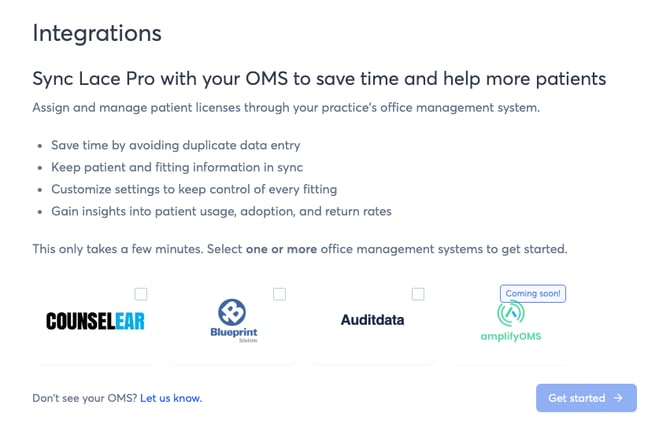
Settings › Integrations. Tick every system your clinics use; setup runs them one after another.
3. Confirm your clinics
Check that each Pro Portal clinic is matched to the right CounselEAR clinic. Choose N/A for any clinic that doesn't use CounselEAR. The match decides which clinician sees each new patient.
4. Add the patient webhook
This lets Pro Portal see your tag the moment it's added.
- In CounselEAR, go to Administration › Clinics › Webhooks and add a webhook.
- Set Trigger to Patient - Updated.
- In Pro Portal, click Copy URL and paste it into Webhook URL.
- Tick Enabled, click Save, then click Continue in the setup.
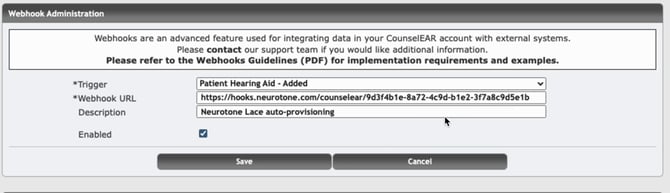
A completed webhook in CounselEAR. Use the trigger and the full URL shown.
Watch out: Paste the URL, never retype it. One wrong character and nothing arrives. Treat the URL like a password.
5. Set your patient tag
Every practice sets this up. It powers Manual clinics and works as a backup at automatic ones.
- In CounselEAR, go to Administration › Patient Setup › Tags and create a tag named Lace Pro Patient.
- In the setup, type the same name and click Continue. Case doesn't matter; spelling does.
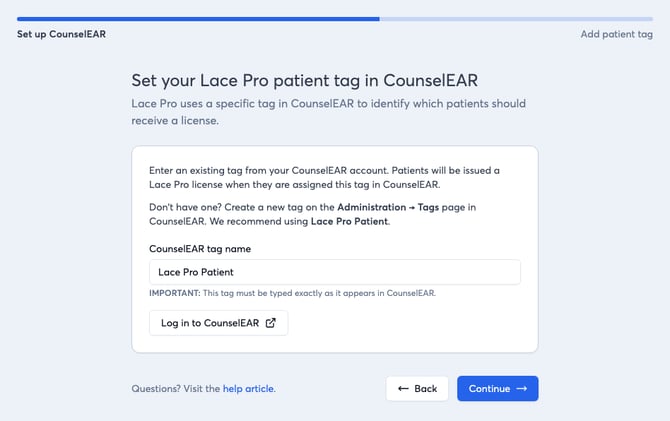
Set up CounselEAR › Add patient tag
To license a patient by hand, add the tag in their GENERAL TAGS field and save.
6. Choose Automatic or Manual
- Under Assign licensed patients to, pick the provider who should see these patients in Pro Portal.
- For each clinic, choose the CounselEAR event:
- Hearing aid added (simplest), or
- Appointment complete, then tick the appointment types that count, or
- Manual, to rely on the tag alone.
- Set a Delay for automatic clinics. We recommend 0 days, so patients start while the fitting is fresh.
- With several clinics, Use the first clinic's settings for all clinics copies row one down.
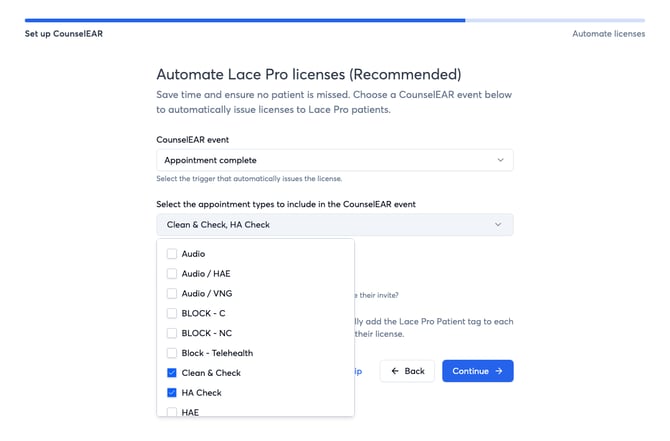
Appointment complete, with the appointment types that count ticked.
Tip: Skip means Manual everywhere. You can automate any clinic later. Manual clinics depend on someone remembering the tag, so automate where you can.
7. Add the event webhook (automatic clinics only)
Add one more webhook in CounselEAR, the same way as step 4, with the same URL. Use the trigger Pro Portal names on screen:
| Event you chose | Trigger in CounselEAR |
|---|---|
| Hearing aid added | Patient Hearing Aid - Added |
| Appointment complete | Patient Appointment Add/Update/Delete/Cancelled/Completed |
The integration acts only on completed appointments of the types you chose. If every clinic is Manual, skip this step.
Review and finish
Check the summary, then click Finish setup. Everything can be changed later.
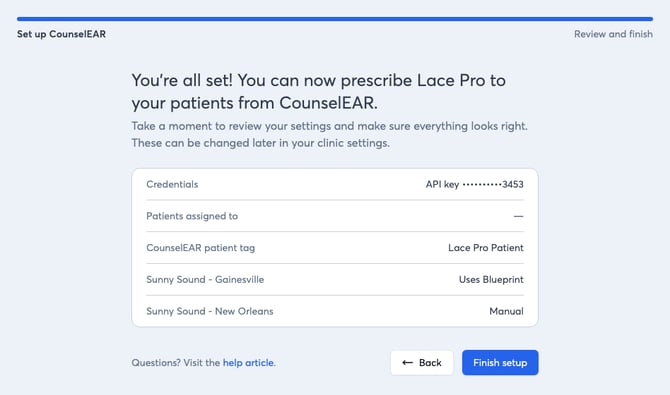
Review and finish. New Orleans is on Manual; Gainesville uses Blueprint.
Check it's working
Add the Lace Pro Patient tag to a test patient with your own email and mobile. Within a minute or two, Data last updated on the CounselEAR tab should change.
Good to know: Your account manager takes you live. New connections start in preview: every event is checked, but no patient is contacted until your account manager switches you live.
If something's not working
| You see | Fix |
|---|---|
| Tab stays on “Waiting for first data” | Re-paste the webhook URL with Copy URL and make sure the webhook is under Active Webhooks. |
| A tagged patient got nothing | Check the tag spelling matches Pro Portal and the Patient - Updated webhook is active. |
| A completed appointment did nothing | Tick that appointment type for the clinic and check the event webhook exists. |
| The invite came late | That clinic has a delay above 0 days. |
| A patient was skipped | They need an email or a mobile number that accepts texts. |
Managing it later
- Edit configuration on the Integrations page changes any setting or replaces your API key.
- The clinic ⋮ menu moves a clinic to another system or stops CounselEAR for it.
- Disconnect in Pro Portal is the real off switch. Deleting the key in CounselEAR doesn't revoke it.