![neurotone-primary-logo-CMYK-1.jpg]](https://support.neurotone.com/hs-fs/hubfs/neurotone-primary-logo-CMYK-1.jpg?height=40&name=neurotone-primary-logo-CMYK-1.jpg)
Connect Blueprint to the Pro Portal once, and your patients get Lace Pro automatically. Blueprint sends the Pro Portal a data file every night, so each newly fitted patient gets their Lace Pro license and a welcome text and email the next morning. Setup takes about 10 minutes in Pro Portal › Settings › Integrations once Blueprint has turned on your data feed. There are no webhooks to set up.
Why connect Blueprint- Save time. No duplicate data entry and no manual license assignment.
- No patient missed. Every qualifying fitting gets a license, even on your busiest day.
- Stay in control. Set the timing for each clinic and change it whenever you like.
- Nothing changes in Blueprint. The Pro Portal only reads the file Blueprint sends.
You choose for each clinic. We recommend Automatic.
| Automatic (recommended) | Manual | |
|---|---|---|
| What issues the license | A hearing aid reaching a fitting status | Your team adds the patient to the Lace Pro Patient group |
| Work per patient | None | Add to one group |
| License arrives | The morning after the fitting, plus any delay you set | The morning after they join the group |
Before you startTip: The group works everywhere. Even at an automatic clinic, adding a patient to the group licenses someone the rule missed. Each patient gets one license, ever.
- Blueprint's data release authorization, signed by the practice owner. Blueprint turns on the feed only after this.
- The five access values Blueprint support sends when the feed is on
- A new Blueprint patient group named Lace Pro Patient, used only for this
- A Pro Portal clinic admin login
Setup in 6 stepsTip: Start the Blueprint paperwork early. It's the only part that takes time. Once you have the five values, setup takes minutes.
- Add your Blueprint data feed
- Confirm your clinics
- Choose your patient group
- Keep the recommended fitting statuses
- Choose Automatic or Manual
- Test, then go live
1. Add your Blueprint data feed
In the Pro Portal, go to Settings › Integrations, tick Blueprint and click Get started. Paste the five values exactly as Blueprint sent them (AWS access key ID, AWS secret access key, AWS region, data feed URL, ZIP password), then click Test connection.
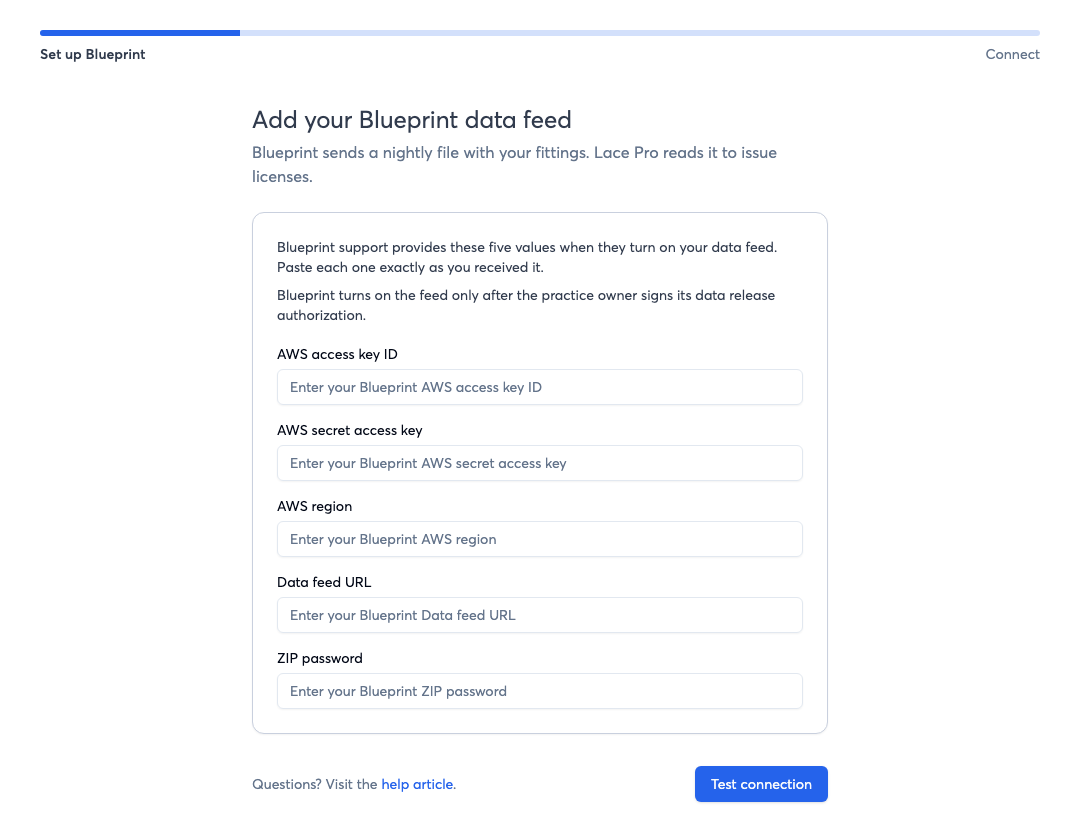
Set up Blueprint › Connect
Watch out: Treat these values like passwords. Paste, never retype, and don't forward them.
2. Confirm your clinics
For each Pro Portal clinic, pick its Blueprint location, or N/A if it doesn't use Blueprint. A clinic already on another system shows “Uses Auditdata” (or similar) and is locked.
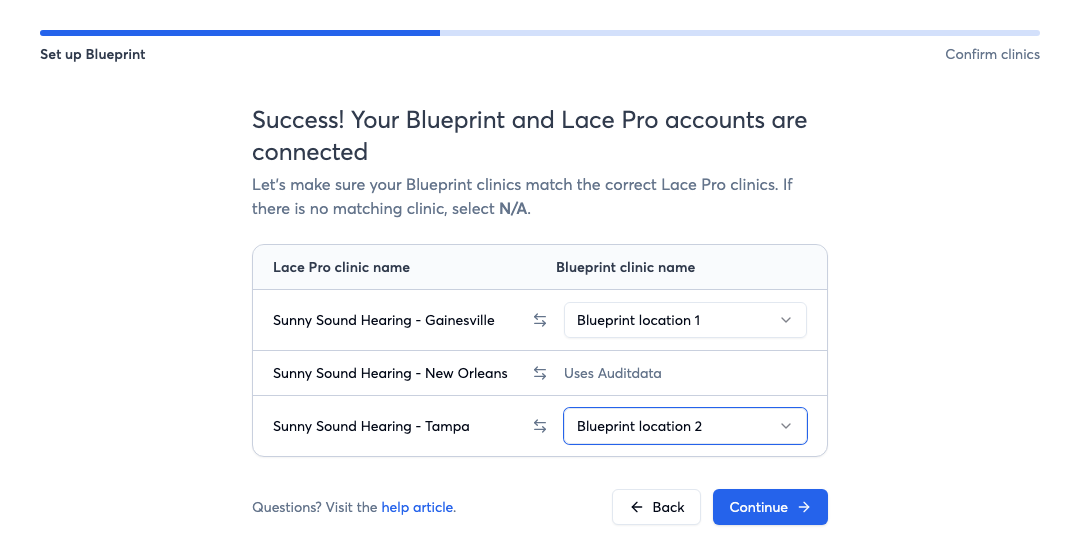
Gainesville and Tampa matched. New Orleans uses Auditdata.
3. Choose your patient group
Every practice sets this up. It powers Manual clinics and works as a backup at automatic ones. Pick Lace Pro Patient from the list, or type its name. A brand-new empty group isn't listed yet, so type it.
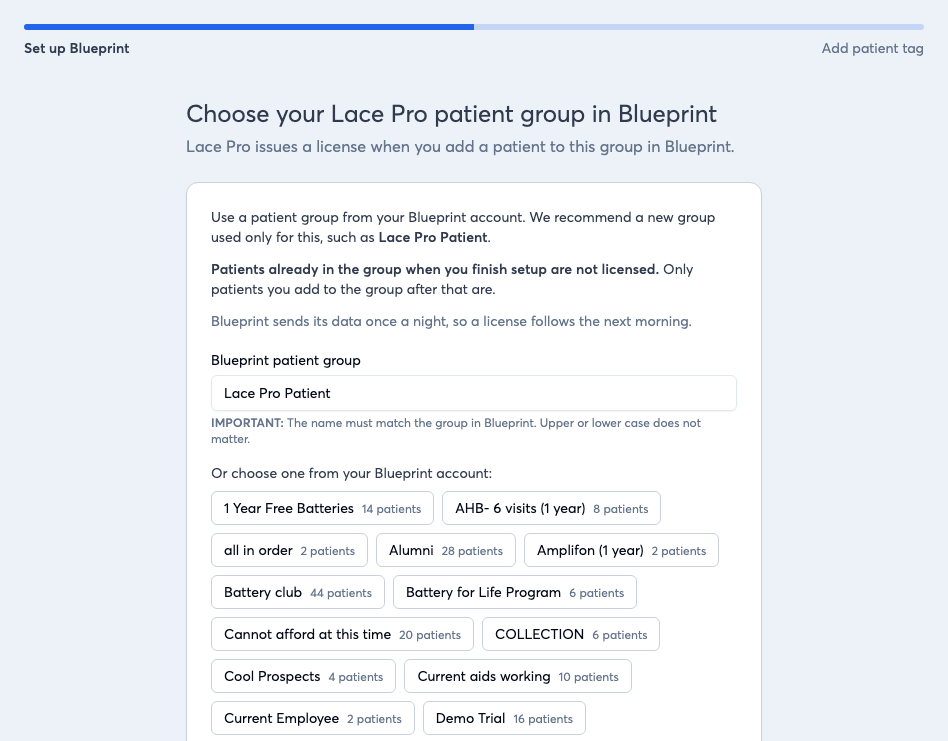
Set up Blueprint › Add patient tag. Your groups are listed with their patient counts.
Watch out: Patients already in the group aren't licensed. Only patients added after you finish setup get a license, so use a new group just for Lace Pro.
4. Keep the recommended fitting statuses
All nine statuses come pre-selected. Leave them ticked. They cover every active hearing aid, including ones away for repair, and each patient still gets only one license.
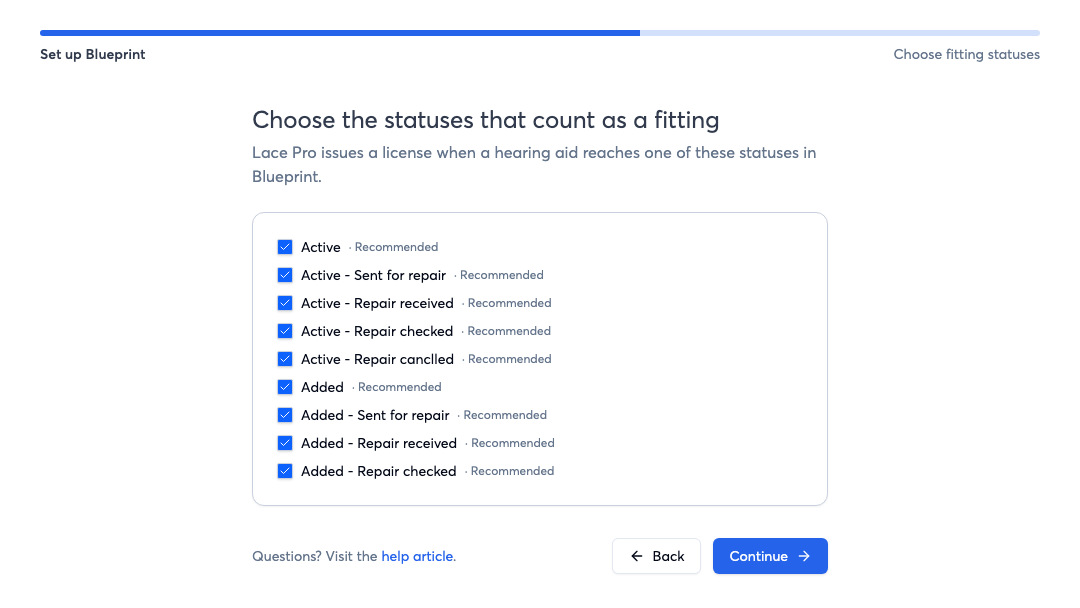
All nine recommended statuses, pre-selected.
5. Choose Automatic or Manual
- Under Assign licensed patients to, pick the provider who should see these patients in the Pro Portal.
- For each clinic, choose Fitting recorded in Blueprint (recommended) or Manual.
- Set a Delay for automatic clinics. 0 days means the morning after the fitting.
- Use the first clinic's settings for all clinics copies row one down.
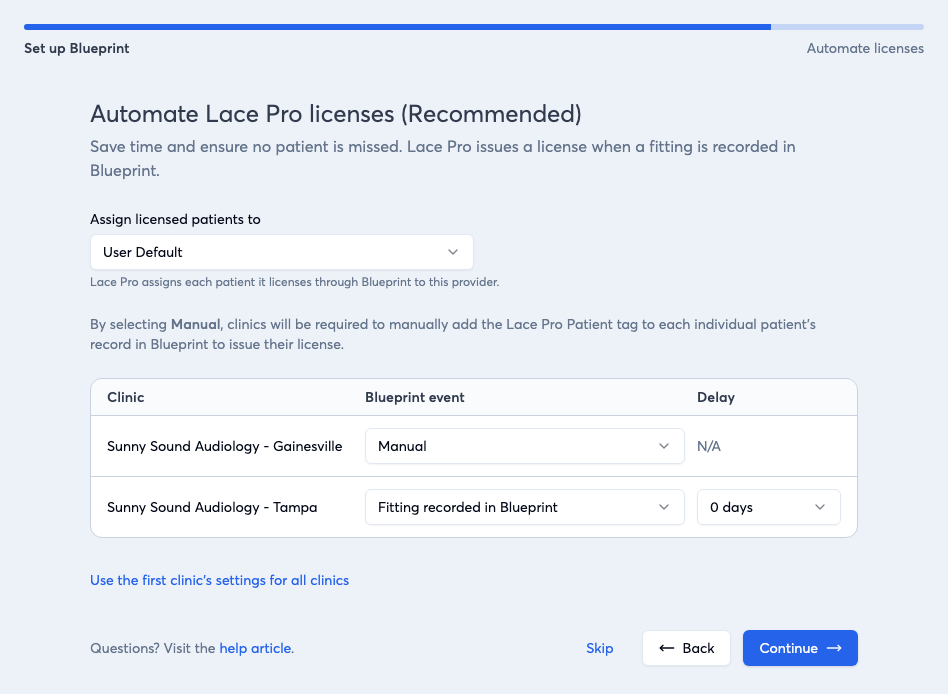
Gainesville on Manual, Tampa on automatic.
Tip: Skip means Manual everywhere. You can automate any clinic later. Manual clinics depend on someone remembering the group, so automate where you can.
Review and finish
Check the summary, then click Finish setup. Everything can be changed later.
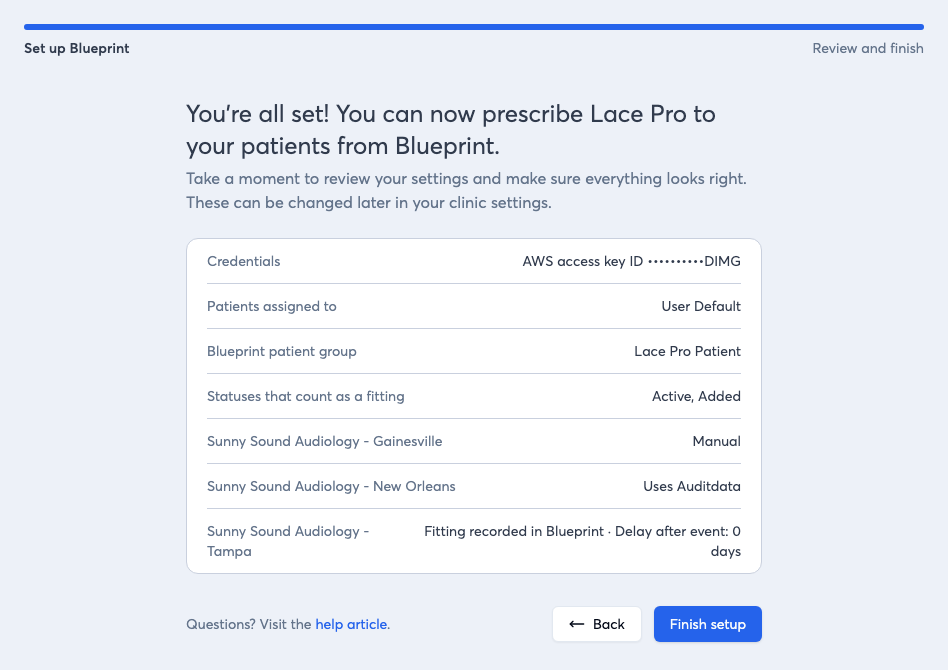
Review and finish.
6. Test, then go live
Every new connection starts in test mode (the badge reads In review). The Pro Portal checks every fitting in Blueprint's nightly file and shows what it would do, but contacts no patients.
When you're happy, open the Blueprint tab in Pro Portal › Settings › Integrations, click Go live and confirm. The confirmation shows how many test-mode events would have created a license. From then on, each newly fitted patient gets a Lace Pro license and the welcome text and email the next morning.
Check it's workingGood to know: You decide when to go live. Going live is self-serve, with no approval step. Your account manager is happy to help you set up and test, but the timing is yours.
Watch out: Going live doesn't send test-mode patients. Patients captured during test mode stay as they are; add them in the Pro Portal by hand if needed. Want them licensed automatically instead? Your account manager can switch you live with those patients included.
The morning after setup, open the Blueprint tab in Settings › Integrations. Data last updated should show that morning's date. To test manual mode, add a test patient (with your own email and mobile) to the group and check the next morning that the Go live confirmation counts them. Once you're live, patients get their welcome the morning after they're fitted or join the group.
If something's not workingTip: Tell patients what to expect. At the fitting, say: “Tomorrow morning you'll get a text and email from Neurotone with your Lace Pro login.” Patients who expect it are far more likely to open it.
| You see | Fix |
|---|---|
| Test connection fails | Paste all five values again. If it still fails, ask Blueprint support to confirm the feed is on. |
| Fitted today, no invite yet | Expected. Blueprint shares data overnight, so the invite goes out the next morning. |
| Data last updated still “Not yet” after two nights | Ask Blueprint support to confirm the feed is running; replace credentials if they issued new ones. |
| Added to the group, nothing next morning | Check the group name matches Blueprint and the clinic isn't set to N/A. |
| A patient was skipped | They need an email or a mobile number that accepts texts. |
| No patients are getting the welcome | Check the badge on the Blueprint tab. In test mode (In review), no patient is contacted until you click Go live. |
- Edit configuration on the Integrations page changes any setting or replaces your credentials.
- The clinic ⋮ menu moves a clinic to another system or stops Blueprint for it.
- Disconnect stops all data and deletes the stored credentials. Licenses already issued stay in place.