![neurotone-primary-logo-CMYK-1.jpg]](https://support.neurotone.com/hs-fs/hubfs/neurotone-primary-logo-CMYK-1.jpg?height=40&name=neurotone-primary-logo-CMYK-1.jpg)
Connect Amplify OMS to the Pro Portal once, and your patients get Lace Pro automatically. When your team records a hearing aid in Amplify, the patient gets their Lace Pro license and a welcome text and email. Setup takes about 15 minutes in Pro Portal › Settings › Integrations, plus six webhook rows in Amplify. There is no API key to request.
Why connect Amplify- Save time. No duplicate data entry and no manual license assignment.
- No patient missed. Every new hearing aid gets the patient a license, even on your busiest day.
- Stay in control. Choose how many days to wait before the invite, clinic by clinic, and test before you go live.
- Nothing changes in Amplify. The Pro Portal only receives what Amplify sends. It never edits a patient record.
Amplify licenses patients automatically: each new hearing aid issues a license, after any delay you set. Returned hearing aids never issue one, and each patient gets one license, ever.
Before you startGood to know: There is no manual tag option for Amplify. Amplify doesn't include patient tags in what it sends, so licenses follow hearing aids only. To license someone by hand, add them in the Pro Portal as you do today.
Good to know: Patients go to one provider. Amplify doesn't send the provider's name, so every patient licensed through Amplify is assigned to the provider you pick during setup.
- An Amplify login that can open Administration › Webhooks
- A Pro Portal clinic admin login
- Both systems open in side-by-side tabs
- The provider who should receive Amplify patients in the Pro Portal
- Start in the Pro Portal
- Add the webhooks in Amplify
- Confirm your clinics
- Choose your provider and delay
- Test, then go live
1. Start in the Pro Portal
Go to Settings › Integrations, tick Amplify OMS and click Get started. The Pro Portal shows your webhook URL with a Copy URL button.
2. Add the webhooks in Amplify
In Amplify, go to Administration › Webhooks. Add one row for each of these six, pasting the same Pro Portal URL into every row:
| Type | Event |
|---|---|
| Patient | Add |
| Patient | Update |
| Hearing Aid | Add |
| Hearing Aid | Update |
| Hearing Aid | Return |
| Hearing Aid | Exchange |
Save, then return to the Pro Portal and click Continue.
Watch out: Paste the URL, never retype it. Treat it like a password. If it's ever shared by mistake, use Get a new webhook URL in the Pro Portal and paste the new one into all six rows.
Watch out: “Send Test” doesn't count. Amplify's test button sends a sample, not a real record. To check the connection, save a real patient instead.
3. Confirm your clinics
Amplify sends clinic numbers, not names, so your clinics appear as, for example, Amplify OMS clinic 46. Match each one to its Pro Portal clinic, or choose N/A.
Tip: No clinics listed yet? The Pro Portal learns your clinics from the patients Amplify sends. Open any patient in Amplify and save it, then refresh this step.
4. Choose your provider and delay
- Under Assign licensed patients to, pick the provider who should see Amplify patients in the Pro Portal.
- Leave the event set to Hearing aid fitted.
- Set a Delay for each clinic. We recommend 0 days, so patients start while the fitting is fresh.
Check the summary, then click Finish setup.
5. Test, then go live
Every new connection starts in test mode (the badge reads In review). The Pro Portal checks everything Amplify sends and shows what it would do, but contacts no patients.
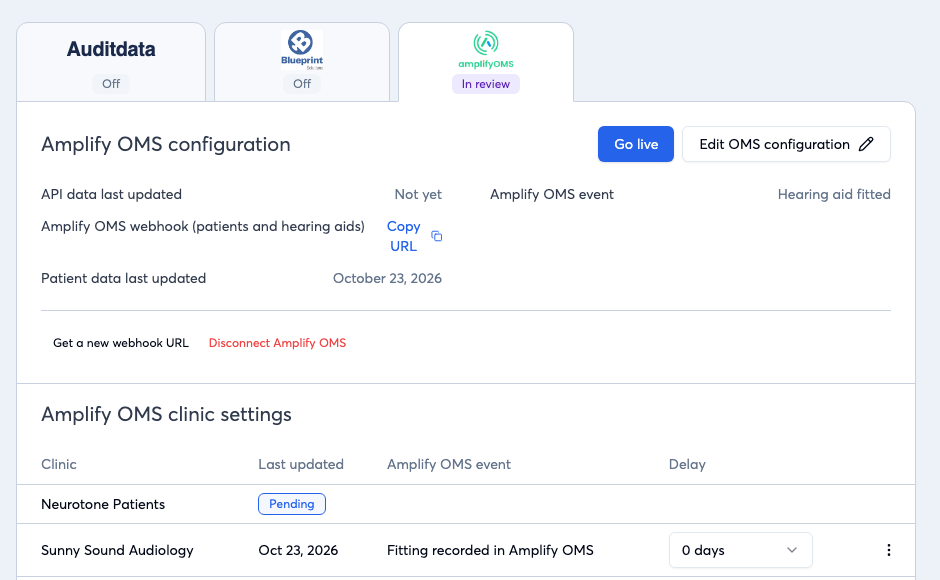
The Amplify OMS tab in test mode, with the Go live button.
When you're happy, click Go live and confirm. From then on, each new hearing aid creates the patient in the Pro Portal, assigns a Lace Pro license and sends the welcome.
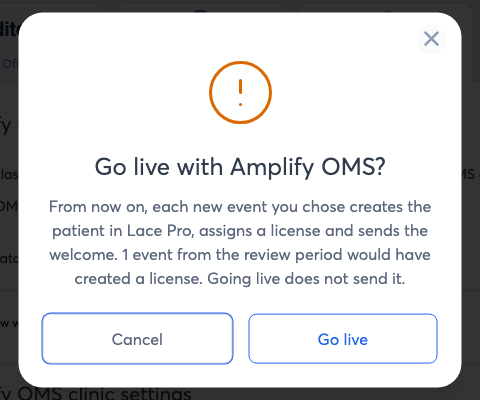
Go live asks you to confirm and shows how many test-mode events would have created a license.
Check it's workingGood to know: You decide when to go live. Going live is self-serve, with no approval step. Your account manager is happy to help you set up and test, but the timing is yours.
Watch out: Going live doesn't send test-mode patients. Patients captured during test mode stay as they are; add them in the Pro Portal by hand if needed. Want them licensed automatically instead? Your account manager can switch you live with those patients included.
While in test mode, record a hearing aid for a test patient with your own email and mobile. In Amplify, a hearing aid sale needs an appointment, a hearing test, then a purchase from that appointment. Patient data last updated on the Amplify OMS tab should change, and the Go live dialog should count the event.
If something's not workingTip: Let the page finish loading after you save. Amplify sends each update from your browser as the next page loads, and it never resends one that fails. Closing the tab right after saving can lose that update.
| You see | Fix |
|---|---|
| Tab stays on “Waiting for first data” | Check all six rows are under Administration › Webhooks with the full URL pasted. |
| No clinics on the clinics step | Save any patient in Amplify, then refresh. |
| A hearing aid didn't count | The tab may have closed before the next page loaded. Re-save the record, or add the patient in the Pro Portal. |
| Patients are under the wrong provider | Change Assign licensed patients to in Edit OMS configuration. |
| A patient was skipped | They need an email or a mobile number that accepts texts. |
| No patients are getting the welcome | Check the badge on the Amplify OMS tab. In test mode (In review), no patient is contacted until you click Go live. |
- Edit OMS configuration changes your clinics, provider or delay.
- Get a new webhook URL replaces the URL. Paste the new one into all six Amplify rows.
- The clinic ⋮ menu moves a clinic to another system or stops Amplify for it.
- Disconnect Amplify OMS stops everything. Licenses already issued stay in place.